How To Use KIFOLIO
Select a guide below to view step-by-step instructions.
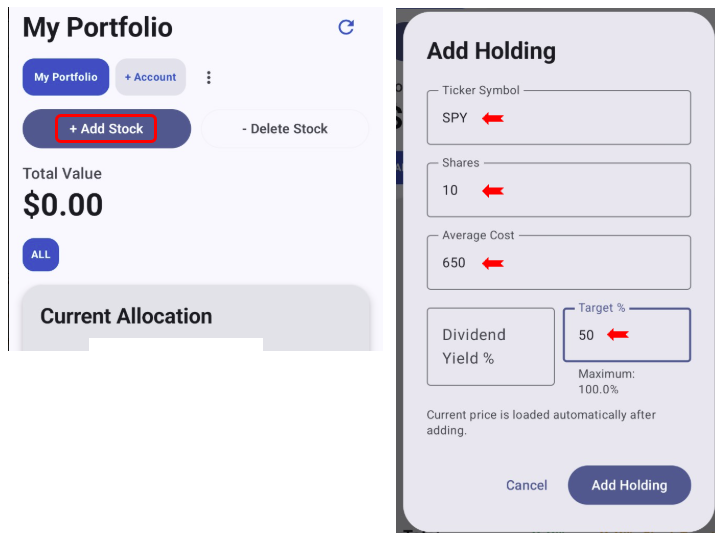
- Open My Portfolio and tap + Add Stock.
- Enter the Ticker Symbol.
- Enter the number of Shares and your Average Cost.
- Set the desired Target %.
- Tap Add Holding.
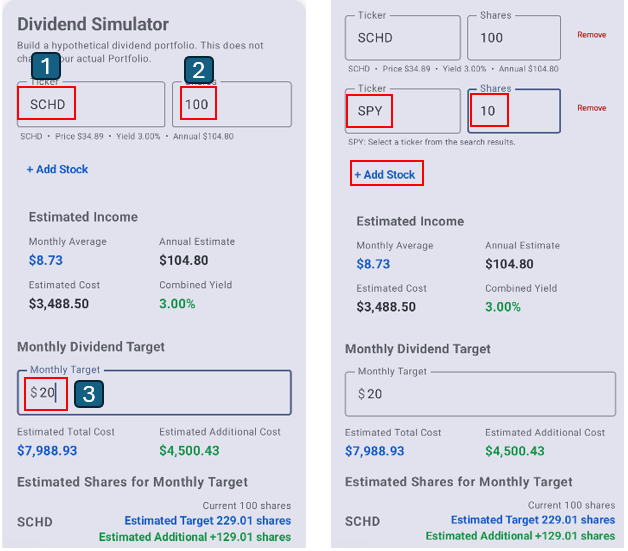
Build a hypothetical dividend portfolio and estimate the investment needed to reach your monthly dividend goal. This simulation does not change your actual portfolio.
-
Enter a Ticker and Shares
Enter a dividend-paying stock or ETF ticker, select it from the search results, and enter the number of shares you want to simulate. -
Add More Stocks (Optional)
Tap + Add Stock to combine multiple dividend-paying stocks or ETFs in the same simulation. Enter a ticker and number of shares for each additional holding. -
Set Your Monthly Dividend Target
Enter the monthly dividend income you would like to receive. KIFOLIO automatically estimates how much investment and how many shares may be needed to reach your target.
Results update automatically as you add or change your simulation.
KIFOLIO displays Monthly Average, Annual Estimate, Estimated Cost, Combined Yield, Estimated Total Cost, Estimated Additional Cost, and Estimated Shares for Monthly Target.
Dividend estimates are based on available market and dividend data and may change. For informational purposes only. Not investment advice.
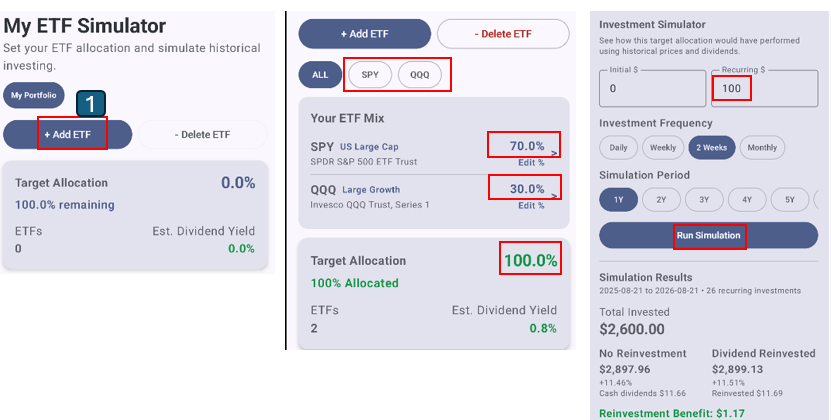
Create your own ETF allocation and use KIFOLIO to simulate how the mix may have performed over time with historical market data and dividends.
-
Add an ETF
Tap + Add ETF, then enter the ETF symbol you want to include. -
Set the Target Allocation
Enter the percentage you want to allocate to the ETF, then tap Add. Repeat this step to add additional ETFs. -
Review Your ETF Mix
Confirm that the target allocations for all ETFs add up to 100%. You can edit individual allocation percentages if needed. -
Configure the Investment Simulator
Enter your initial investment and recurring investment amount, then choose an investment frequency and simulation period. -
Run the Simulation
Tap Run Simulation to view estimated historical results, including total invested, portfolio value, dividends, and the impact of dividend reinvestment.
Tip: Your ETF allocation should total 100% before running the simulation.
Simulation results are based on available historical market and dividend data. Past performance does not guarantee future results. For informational purposes only. Not investment advice.
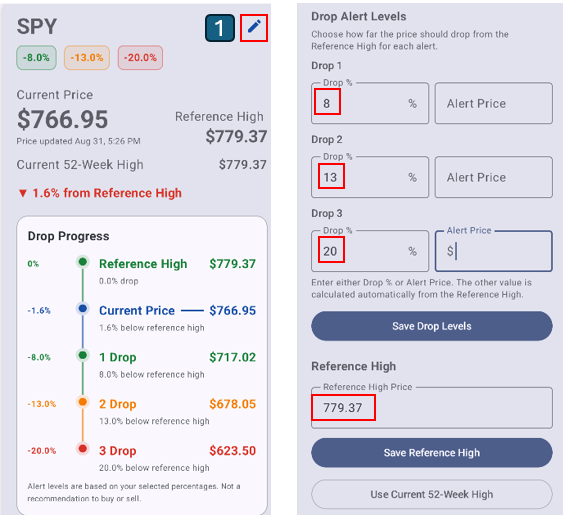
Use Market Drop Tracker to monitor how far a stock or ETF has fallen from a selected reference high and set your own drop alert levels.
-
Open Alert Settings
Select the ticker you want to monitor and tap the edit icon. -
Set Your Drop Alert Levels
Enter the percentage drop for Drop 1, Drop 2, and Drop 3. You can enter either a Drop % or an Alert Price; KIFOLIO calculates the other value automatically. -
Save the Drop Levels
Tap Save Drop Levels. The tracker displays each alert level and the stock's current progress from the reference high. -
Review or Change the Reference High
Enter a custom Reference High and tap Save Reference High, or use Use Current 52-Week High to reset the reference to the current 52-week high.
Tip: Drop levels are based on the selected Reference High. Changing the Reference High recalculates the corresponding alert prices.
Market prices and drop calculations are provided for informational purposes only and may differ from real-time market prices. Not investment advice.
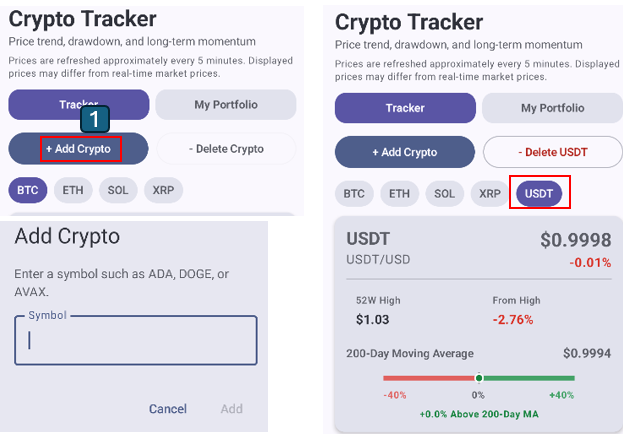
Use Crypto Tracker to add cryptocurrencies you want to monitor and quickly view their price trend, drawdown, and long-term momentum.
-
Add a Crypto
Tap + Add Crypto, enter a cryptocurrency symbol such as USDT, and add it to the tracker. -
View the Crypto
After adding the symbol, it appears as a new ticker tab in Crypto Tracker. Tap the ticker to view its current price, 52-week high, drawdown from the high, and 200-day moving average. -
Delete a Crypto
Select a crypto you added, then tap - Delete Crypto to remove it from the tracker.
Tip: Default tracker symbols remain available, while cryptocurrencies you add can be removed from the tracker.
Crypto prices are refreshed approximately every 5 minutes. Displayed prices may differ from real-time market prices. For informational purposes only. Not investment advice.
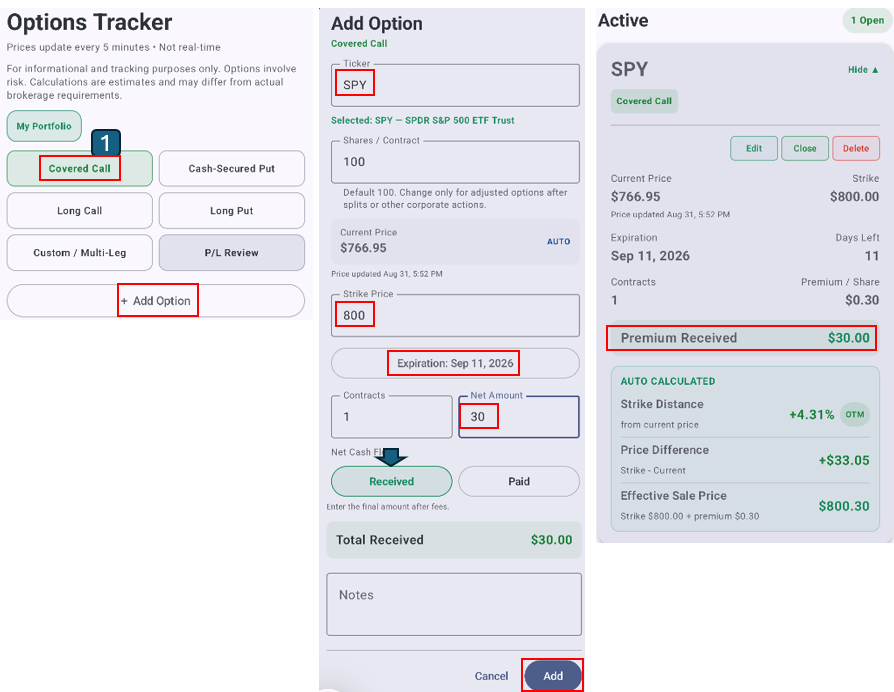
Use Options Tracker to record option positions, track premiums, and review key contract information and calculated values.
-
Choose an Option Strategy
Select a strategy such as Covered Call, then tap + Add Option. -
Enter the Option Details
Enter the ticker symbol and contract details, including the Strike Price, Expiration Date, number of Contracts, and Net Amount. -
Record the Premium
Choose whether the net cash flow was Received or Paid. KIFOLIO automatically calculates the total premium based on the amount and number of contracts. -
Add the Position
Review the information and tap Add to save the option position. -
Track the Position
The position appears under Active, where you can review the current price, strike, expiration, days left, contracts, premium, strike distance, price difference, and effective sale price.
Tip: Use Edit, Close, or Delete to manage an existing option position as it changes.
Options involve risk. Calculations and market data are estimates and may differ from actual brokerage values. For informational and tracking purposes only. Not investment advice.
Cash-Secured Put — Cash Sources
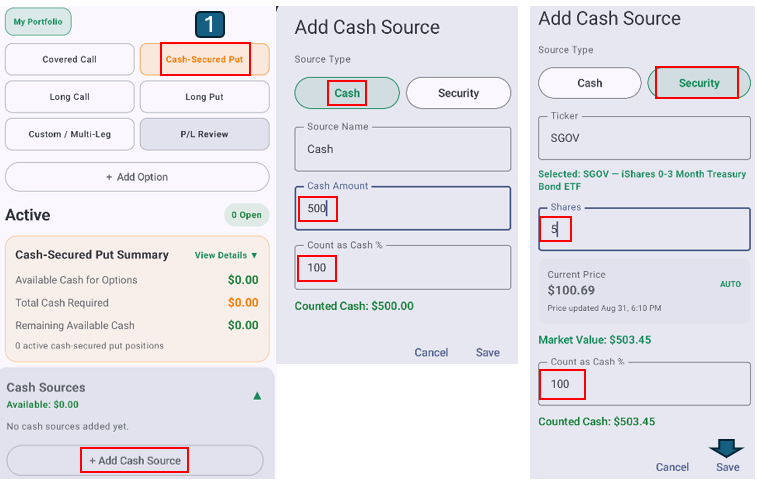
Track the cash and cash-equivalent securities available to secure your cash-secured put positions.
-
Open Cash-Secured Put
Select Cash-Secured Put, then tap + Add Cash Source under Cash Sources. -
Add Cash
Select Cash, enter the cash amount, and choose the percentage to Count as Cash %. Tap Save to add the cash source. -
Add a Cash-Equivalent Security
Select Security, enter a ticker such as SGOV, and enter the number of shares. KIFOLIO automatically loads the available market price and calculates the market value. -
Set Count as Cash %
Choose how much of the security's market value should count toward available cash, then tap Save.
How it works: KIFOLIO combines your eligible cash sources and uses them to calculate Available Cash for Options, Total Cash Required, and Remaining Available Cash for your cash-secured put positions.
Market values and calculations are estimates and may differ from actual brokerage values. For informational and tracking purposes only. Not investment advice.
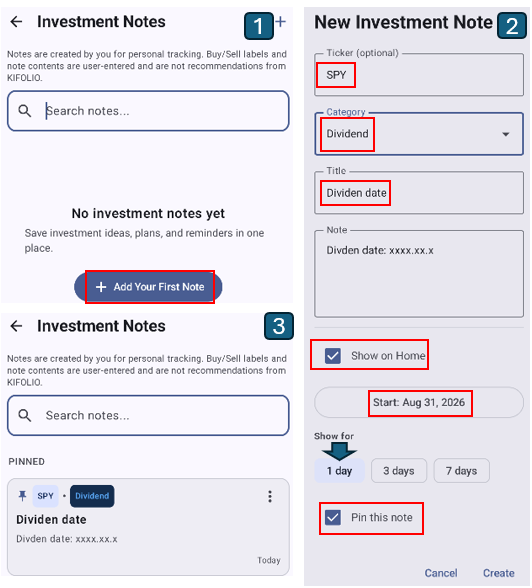
Use Investment Notes to save your own investment ideas, plans, reminders, and personal tracking notes.
-
Add an Investment Note
Tap the + icon or + Add Your First Note to create a new investment note. -
Enter Your Note Details
Optionally enter a Ticker, select a Category, add a Title, and write your note. -
Show the Note on Home (Optional)
Enable Show on Home, choose a start date, and select how long the note should appear on your Home screen. -
Pin Important Notes (Optional)
Enable Pin this note to keep an important note at the top of your Investment Notes list. -
Create and Review Your Note
Tap Create to save the note. Your saved notes can be searched and reviewed from the Investment Notes screen.
Tip: Investment Notes are designed for your own ideas, plans, reminders, and investment tracking.
Buy/Sell labels and note contents are user-entered and are not recommendations from KIFOLIO.
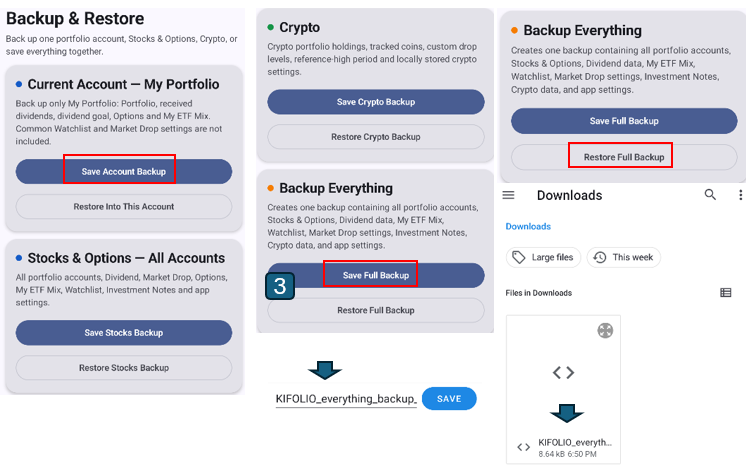
Use Backup & Restore to create backup files for your portfolio data and restore them later when needed.
-
Choose What to Back Up
Use Save Account Backup to back up only the currently selected portfolio account, or choose one of the broader backup options for Stocks & Options, Crypto, or all data. -
Back Up Everything
Use Backup Everything when you want one backup file containing your portfolio accounts, Stocks & Options, dividend data, ETF Mix, Watchlist, Market Drop settings, Investment Notes, Crypto data, and app settings. -
Save the Backup File
Tap Save Full Backup, choose a location such as Downloads, and save the backup file on your device. -
Restore a Backup
To restore saved data later, return to Backup & Restore and select the matching restore option, such as Restore Full Backup.
Tip: Keep backup files in a safe location, especially before changing devices, reinstalling the app, or making major portfolio changes.
Restoring a backup may replace or merge app data depending on the backup type. Review the selected restore option before continuing.